Mike CLI User Guide
This documentation is the user guide for Mike’s command-line client application (mike-cli). It explains how to obtain, install, and use the application.
1.Download and installation
At the moment, an installer is available only for Debian-based operating systems, and we have tested it solely on Ubuntu 22.04 LTS. However, the application itself is written in Java, so it can run on any OS that provides the required runtime (Java 17 JRE or newer, e.g. available here), though installation may require more manual steps. (To compile and run the source code generated by Mike you may also need additional dependencies.)
Go to the RTS Pro public downloads page, choose the latest installer package (e.g., mike-cli_1.0.19_all.deb), and download it. In a terminal, in the directory containing the downloaded file, run:
sudo apt update
sudo apt -f install ./mike-cli_1.0.19_all.deb
The first command refreshes the package index; the second begins installation. Afterwards, start the program with the mike command.
If you no longer need the program, you can remove it at any time:
sudo apt remove mike-cli
sudo apt autoremove
The first command removes the program itself. If the installer pulled in extra runtime dependencies that you do not need anymore, the second command removes those.
Visit the RTS Pro public releases page, choose the latest release of the command-line client (for example,
mike-cli-1.0.19.zip), and download it to your computer.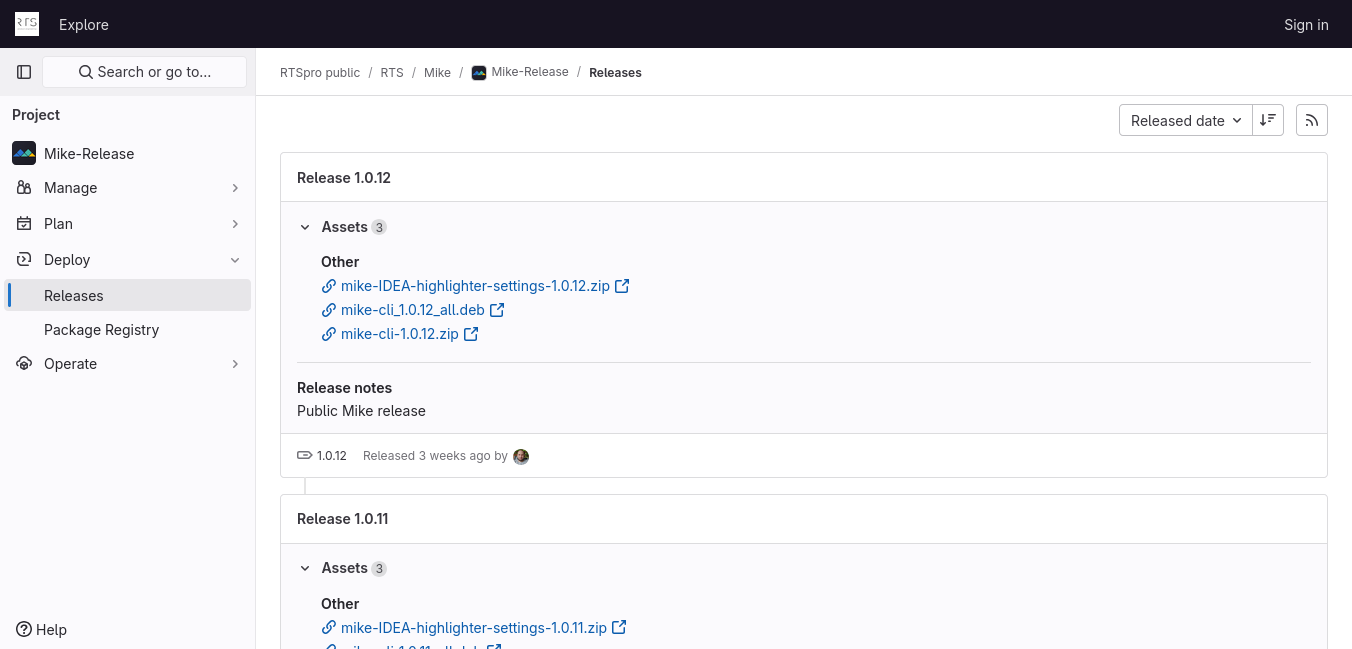
Extract the archive, for example to
C:\Program Files\mike.Press ⊞ Win+R to open the Run dialog.
Type
sysdm.cpl, then press Enter.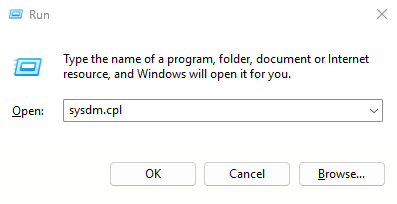
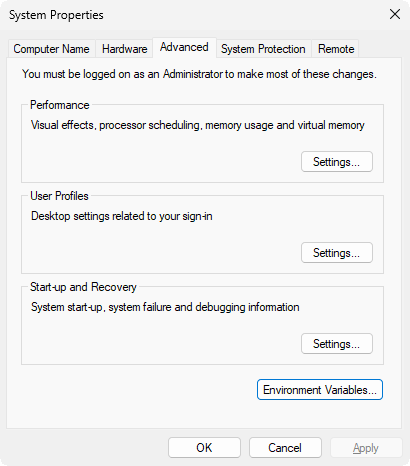
In the System Properties window, open the Advanced tab.
Click Environment Variables….
Under User variables, select the
Pathvariable and click Edit….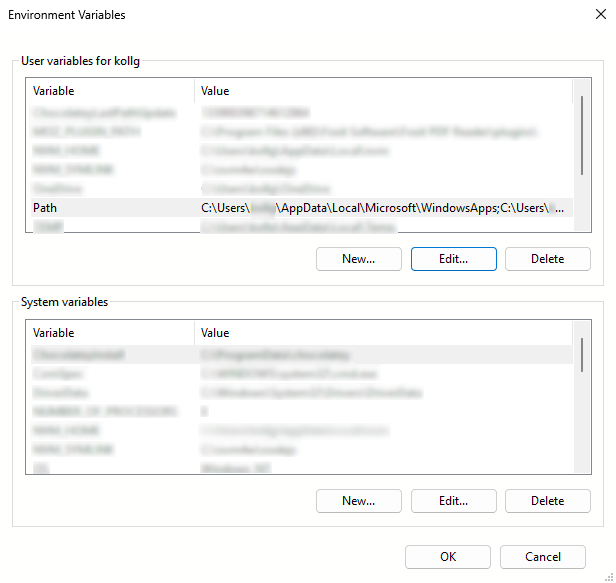
Click New.
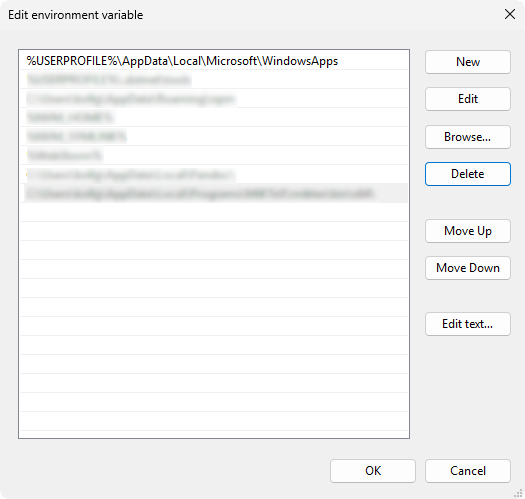
Enter the folder that contains
mike.batfrom the extracted package—for example,C:\Program Files\mike\mike-cli-1.0.19\bin—then click OK.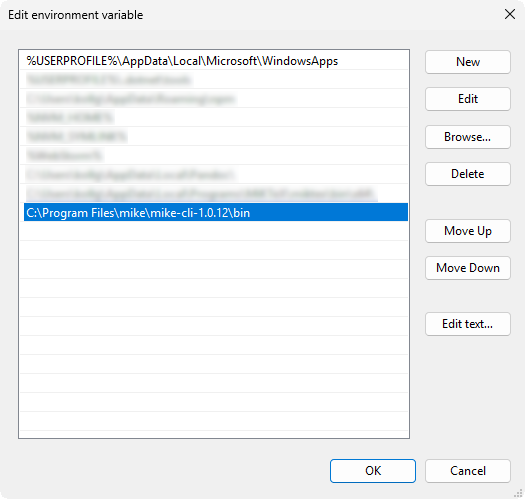
Close the Environment Variables and the System Properties windows by clicking OK.
In any newly opened command prompt, you can now start the Mike CLI by running
mike.
If the Java Runtime Environment is not installed, you will see the following error:
ERROR: JAVA_HOME is not set and no 'java' command could be found in your PATH.

Please set the JAVA_HOME variable in your environment to match the
location of your Java installation.
In this case, install OpenJDK 17 or newer:
Download the OpenJDK 23 ZIP package.
Extract it, e.g., to
C:\Program Files\OpenJDK.As described above, set the
JAVA_HOMEenvironment variable—e.g., toC:\Program Files\OpenJDK\jdk-23.0.2(confirm the exact folder name).Update your
PATHvariable to include%JAVA_HOME%\bin.
For additional installation help, see this video.
To verify the installation, open a new command prompt and run java -version or mike. The former should print the version of the installed JDK if everything is set up correctly.
2.General usage and command-line parameters
For a brief overview of the program’s behavior and available commands, run mike, mike -h, or mike --help. General usage:
mike <command> [<parameters>]...If you pass -h or --help among a command’s parameters, you’ll get details for that specific command (e.g., available options). Since --help is always available, we won’t call it out again below.
All commands are available in both long, readable forms and short, easy-to-type aliases.
2.1.Show the version
mike ver or mike version
Prints the CLI version, e.g.
-- Mike Version --
Current Version: [1.0.19] (commit: 0b65c98)2.2.Initialize a new project
The mike init or mike initialize command creates a new Mike project in the current directory based on information you provide. The program will prompt for the project name, the Java package name to use, the technology stack, the mike directory, the source directory, the resources directory, and your API key. The API key identifies your subscription and should be copied from the Dashboard. If the defaults are acceptable, you can simply press Enter.
Running the command creates a hidden .mike directory in the current folder. Mike uses this internally; editing files inside it may cause misbehavior and is strongly discouraged. By contrast, the mike directory is meant to be edited by developers: it contains the config.yaml configuration file where you can adjust, for example, the project name, the Java package name for generated sources, and additional settings such as the color theme for generated pages. The second file, main.mike, is the data and UI descriptor for the project; it’s essentially the generator’s input. At the project root, you’ll also find mike.yaml, where you can change the API key and the relative paths to source and resource files. The config.yaml and mike.yaml files are populated with the values you provided to mike init, and main.mike contains a minimal page descriptor that already produces a working page. If you later want to alter any answers you gave to mike init, edit the two .yaml configuration files.
With the -d or --work-dir options, Mike will prepare the project at the specified path instead of the current directory.
2.3.Generate project files
If the current directory already contains an initialized project, create source, resource, and other files by running mike gen or mike generate. On first run, the appropriate files are created with initial content based on main.mike. If developers have already modified some source files or the descriptor, the system tries to automatically merge newly generated files with any developer-modified files using Git. Sometimes both Mike and the developer have changed the same lines; in that case, automatic merging is impossible and requires manual intervention. You can resolve conflicts manually and then run mike resolve, or you can roll back the last generation attempt with mike abort.
If you include -o or --overwrite, Mike skips merging and overwrites existing files with freshly generated ones. Because this can be dangerous, the program will ask for confirmation. If you’re sure, add -y or --assume-yes to assume “y” for all prompts. Mike only generates when the descriptor files have changed. Sometimes generation is still useful even if descriptors are unchanged (e.g., a developer manually altered generated files and you want to re-sync them to the descriptor). In such cases, -f or --force triggers generation regardless. While developers typically don’t need it, -dbg or --debug prevents deletion of temporary work directories so you can inspect intermediate steps if you suspect an error. You can also use -v or --verbose for more detailed output and -d or --work-dir if the target project is not in the current directory.
In practice, the code generator server may occasionally be slow due to load, causing the client to time out. One possible workaround is to increase the requestTimeout value in mike.yaml from its default of 120 seconds.
2.4.Automatic generation
If you run mike watch or mike watcher, the program keeps running and monitors main.mike and config.yaml for changes. When a change is detected, it immediately starts generation (see 2.3. Generate project files), just as if you had run mike gen. To stop the watcher, use your OS’s interrupt key combination; on Windows and GNU/Linux this is Ctrl+C.
2.5.Undo the last generation
If the most recent generation attempt succeeded, you can undo its results with mike und or mike undo. Naturally, this requires at least one successful generation to have occurred. You can undo up to as many steps as specified by the undoStackSize key in mike.yaml (five by default).
Use -v or --verbose for more detail about the restore process, -d or --work-dir to target a project outside the current directory, and -y or --assume-yes to auto-confirm all prompts.
2.6.Manual conflict resolution
If conflicts arise during mike gen—i.e., Mike cannot decide whether to keep developer changes or generated changes—there are two choices: abort the generation (mike abort), or resolve the conflicts manually and then inform the generator by running mike resolve. The program lists the affected files and marks the conflicting regions in Git’s standard format. You can resolve these either with a dedicated merge tool or a text editor, and then run mike resolve. If all conflicts are resolved correctly, future generations can proceed.
Use -v or --verbose for detailed output, and -d or --work-dir if the project is not in the current directory.
2.7.Abandon a generation attempt
If conflicts arise during mike gen, you may decide to abandon the attempt rather than resolve them (mike resolve). Use mike abort to do so. This removes Git’s conflict markers from files, restoring them to their pre-generation state, while leaving your modified descriptors intact.
Useful options: -v or --verbose for detailed logs, -d or --work-dir to point to a project elsewhere, and -y or --assume-yes to auto-confirm prompts.
2.8.Preview the result of a generation
If you’d like to see the effect of descriptor changes before merging them into your current sources, run mike prev or mike preview. This creates a new subdirectory in the project root called mike-preview by default (you can change the name with the previewDirName key in mike.yaml) containing the files as they would look given the current descriptors. Afterwards, decide whether to merge these changes into your web application (mike gen, which also deletes the preview directory) or simply delete the preview files (mike prev -c).
By default, the preview is produced via a merge (git merge): it combines the current project state with the preview content. If you want the state that exactly matches the current descriptor, use -o or --overwrite. With -f or --force, the preview is generated even if no changes are detected in the descriptor compared to the previous state. Use -v or --verbose for more details, -d or --work-dir to target a different project folder, and -dbg or --debug to keep temporary files generated during the process, which can help in troubleshooting.
2.9.Compare the preview with the current version
Activate this mode with mike difference or mike diff. It works like 2.8. Preview the result of a generation, but after creating the preview, Mike compares the current project files with the preview and prints the differences.
The available options differ only in that there’s no separate option to delete mike-preview here; use mike prev -c for cleanup.
2.10.Remove a lock
Almost every command creates a lock file before doing any real work and deletes it afterwards. If a task is interrupted, the lock file can remain and block further operations. In that case, remove it manually with mike unl or mike unlock.
Useful options: -d or --work-dir to operate on a project in a different directory, and -y or --assume-yes to auto-confirm prompts.
3.Example workflows for generation and handling issues
3.1.Initialization
Create a directory for your project (e.g., /home/user/Documents/work/crm), cd into it, run mike init, and press Enter to accept the defaults. You’ll see output like this:
-- Mike --
For help use --help or -h

-- Initializing Mike Project --

What should the project's name be? [default test-project]
: crm
What should the project's Java package name be? (such as com.companyname.projectname) [default com.yourpackage.app]
:
: com.yourpackage.app
Which technology stack would you like to use?
1) Spring backend + Vaadin frontend [default]
2) Spring backend + REST frontend
:
: 1
Where should the Mike directory be? [default <project-root>/mike]
: <project-root>/
: <project-root>/mike
Where should the root source directory of the generated code be? [default <project-root>/src/main/java]
: <project-root>/
: <project-root>/src/main/java
Where should the root resources directory of the generated code be? [default <project-root>/src/main/resources]
: <project-root>/
: <project-root>/src/main/resources
Please copy and paste your API key from a project on the dashboard (https://app.mikecodwell.com)
: a45a236e-b22d-46de-94db-294af69f2e96

Settings file path: /home/user/Documents/work/crm/mike.yaml
Mike directory created at /home/user/Documents/work/crm/mike

Mike successfully initialized in this directory. [/home/user/Documents/work/crm]3.2.Generation
Now generate the project files by running mike gen:
-- Mike --
For help use --help or -h

-- Mike Generate (With Merge) --
Code successfully generated

-- Generated code statistics --
 132         java files with 11076 lines
   9          css files with   287 lines
   2   properties files with   365 lines
   1          xml files with   227 lines
   1           md files with    82 lines
   1          yml files with    51 lines
   1        plain files with    15 lines
   1         html files with    13 lines
   1         json files with     3 lines
----------------------------------------
 149        total files with 12119 lines
In just a few seconds, all project files are created, and the command prints statistics about counts and sizes by file type.
Suppose one developer, Alice, edits /home/user/Documents/work/crm/src/main/java/com/yourpackage/app/entity/Test.java to add a value field of type Integer to the Test entity, while Bob edits main.mike as follows (excerpt):
1 2 3 4 5 6 7data { entity Test { id: UUID @primary name: String! value: Float status: Status }
In other words, Bob also adds a value field to Test, but as a Float (i.e., Double in Java). After running mike gen, the key lines of output will be:
[CONFLICTS]
    src/main/java/com/yourpackage/app/entity/Test.java

Please fix these conflicts, then run `mike resolve`.
(Or to undo the `mike generate` command and reset the code to its previous state, run `mike abort`.)
The generator has correctly identified a conflicting change in one file. You must either resolve the conflict manually and run mike resolve, or abandon the descriptor change with mike abort.
3.3.Manual conflict resolution
Let’s try the first approach. In Test.java you’ll find Git-inserted conflict hunks like:
<<<<<<< HEAD
    @Column(name = "value", nullable = false)
    private Integer value;
=======
    @Column(name = "value")
    private Double value;
>>>>>>> a1563817954f71445eefafdba26e7e9f7d162344
and
<<<<<<< HEAD
    public Integer getValue() {
        return value;
    }

    public void setValue(Integer value) {
=======
    public Double getValue() {
        return value;
    }

    public void setValue(Double value) {
>>>>>>> a1563817954f71445eefafdba26e7e9f7d162344
Let’s decide to implement the descriptor’s version: delete Alice’s parts and the Git conflict markers. Then run mike resolve:
-- Mike --
For help use --help or -h

-- Mike Resolve --
All merge conflicts resolved!
Mike confirms the conflicts are resolved; you can attempt generation again (mike gen). Of course, that only makes sense if you change the descriptors; otherwise there’s nothing new to generate, as shown here:
-- Mike --
For help use --help or -h

Input files have not changed since the previous `mike generate`.
(To force code to be re-generated, use the --force option.)3.4.Discarding a generation
Alternatively, after the conflict arises you might choose to discard Bob’s change in the descriptor by running mike abort. The descriptors remain unchanged—i.e., Alice’s modification stays—while the entity code in Test.java reverts to the state before Bob’s changes.
-- Mike --
For help use --help or -h

-- Mike Abort --
This will reset all Mike-generated files to the state they were in before `mike generate` was run.
Any changes that were made after that point will be discarded!
Are you sure you want to continue? (y/N)
: y
Previous state successfully restored3.5.Automatic generation
Instead of running mike gen manually, you could have started mike watch, which continuously watches main.mike and config.yaml and automatically triggers generation when they change. Example output:
-- Mike --
For help use --help or -h

ATTENTION!
The watcher process re-generates code automatically whenever the Mike descriptor or configuration file changes.
It does not wait for user input before doing so!
Collecting files to watch...
The following files will be watched until you stop the watcher process:
main.mike
config.yaml
Watching for changes...
Changes detected. Generating code...
-- Watcher: Mike Generate (With Merge) --
Watcher: Code successfully generated

-- Generated code statistics --
 132         java files with 11076 lines
   9          css files with   287 lines
   2   properties files with   365 lines
   1          xml files with   227 lines
   1           md files with    82 lines
   1          yml files with    51 lines
   1        plain files with    15 lines
   1         html files with    13 lines
   1         json files with     3 lines
----------------------------------------
 149        total files with 12119 lines
Watching for changes...
^C3.6.Undoing a generation
If you realize a generation should not have been performed—or not in that way—you can undo the last few generations with mike und or mike undo, resulting in:
-- Mike --
For help use --help or -h

-- Mike Undo --
This will reset all Mike-generated files to the state they were in before `mike generate` was run.
Any changes that were made after that point will be discarded!
Are you sure you want to continue? (y/N)
: y
Previous state successfully restored3.7.Previewing a generation
Another scenario: you include the value field for Test in the descriptor but as Int—a hybrid of Alice’s and Bob’s approaches.
1 2 3 4 5 6 7data { entity Test { id: UUID @primary name: String! value: Int status: Status }
This time, instead of immediately changing the web app, let’s be cautious and preview the generated code by running mike prev:
-- Mike --
For help use --help or -h

-- Mike Preview (With Merge) --
Preview successfully generated
Preview can be found in: ./mike-preview
To make these changes permanent, run `mike generate`
To clean up the preview directory, run `mike preview -c`
You’ll see that a second copy of the web app’s code was produced based on the current descriptors, under the mike-preview subdirectory. As expected, for example, every Double related to the value field in Test.java has become Integer, and some additional code using the entity has changed as well. To apply these changes, run mike gen, which also deletes mike-preview. If you only wanted to remove the preview without applying changes, mike prev -c would also have been sufficient.
3.8.Viewing changes
Earlier, the only way to see what changed was by inspecting the preview manually. A better approach is to use mike diff rather than mike prev. It generates the preview and reports the differences relative to the current codebase.
...
Comparing changed files...
Files that would be altered:
Changes in src/main/java/com/yourpackage/app/view/testcreatepage/TestCreateForm.java:
Line #00007: import com.vaadin.flow.component.textfield.+IntegerField;import com.vaadin.flow.component.textfield.-NumberField;
Line #00031:     private +IntegerField valueInput;    private -NumberField valueInput;
Line #00054:         valueInput = new +IntegerField();        valueInput = new -NumberField();
Changes in src/main/java/com/yourpackage/app/view/testeditpage/TestEditForm.java:
Line #00008: import com.vaadin.flow.component.textfield.+IntegerField;import com.vaadin.flow.component.textfield.-NumberField;
Line #00033:     private +IntegerField valueInput;    private -NumberField valueInput;
Line #00058:         valueInput = new +IntegerField();        valueInput = new -NumberField();
Changes in src/main/java/com/yourpackage/app/view/testviewpage/TestDetails.java:
Line #00186:         return converter.+fromInteger(+Optional.ofNullable(entity).map(Test::getValue).orElse(null));        return converter.-fromDoubleDecimal(
Line #00187: -                Optional.ofNullable(entity).map(Test::getValue).orElse(null));
Changes in src/main/java/com/yourpackage/app/entity/Test.java:
Line #00023:     private +Integer value;    private -Double value;
Line #00045:     public +Integer getValue() {    public -Double getValue() {
Line #00049:     public void setValue(+Integer value) {    public void setValue(-Double value) {
Changes in src/main/java/com/yourpackage/app/model/TestDto.java:
Line #00011:     private +Integer value;    private -Double value;
Line #00030:     public +Integer getValue() {    public -Double getValue() {
Line #00034:     public void setValue(+Integer value) {    public void setValue(-Double value) {
Difference comparison successfully completed
Preview can be found in: ./mike-preview
To make these changes permanent, run `mike generate`
To clean up the preview directory, run `mike preview -c`
...